



Most CI pipelines don’t have a screen. Your tests need to run anyway. That’s the core case for headless browser testing: it lets you run a full browser in an environment that has no graphical interface. No display server, no GPU rendering, no window to pop up in the middle of your pipeline. The browser still loads pages, executes JavaScript, processes CSS, and interacts with the DOM. It just does it invisibly.
This guide covers what headless browser testing is, when to use it, how to set it up with Selenium (in Python), and what to watch out for. If you’re already running browser tests and want to understand the tradeoffs before switching to headless execution, this is for you.
What Is Headless Browser Testing?
A headless browser is a web browser without a GUI. It behaves like a regular browser in every meaningful way: it loads web pages, runs JavaScript, follows redirects, handles cookies and sessions. The difference is that nothing gets painted to a screen.
Headless browser testing, then, is the process of running automated browser tests using one of these headless browsers. You write test scripts that simulate user interactions with your web application, and the browser executes them without ever showing you what’s happening visually.
This matters because:
- CI/CD servers don’t have displays. Running browser tests in headless mode means you can execute test suites in GitHub Actions, GitLab CI, Jenkins, or any other pipeline without additional setup for virtual displays.
- Headless browsers are lightweight. Since they don’t render the browser UI, they consume fewer system resources than a full browser window. You can run multiple headless tests in parallel without slowing down your build.
- Speed. Headless execution skips CSS rendering overhead and window management, which makes tests run faster than in a headed browser.
Headless browsers are widely used in automated testing, web scraping, and performance monitoring — wherever you need a real browser engine running programmatically rather than interactively.
Popular Headless Browsers
Headless Chrome
Chrome’s headless mode is the most common choice for browser automation today. As of Chrome 112, Google ships headless Chrome as the default headless mode (via –headless=new), replacing an older implementation. The new headless mode uses the same rendering engine as regular Chrome, which means test results accurately reflect what real users see.
If you’re using Selenium with Chrome, note that setHeadless(true) was removed in Selenium 4.10.0. The current approach is to pass –headless=new as an argument to ChromeOptions.
Headless Firefox
Firefox also supports headless mode via GeckoDriver and Selenium WebDriver. It’s a solid option if you need cross-browser coverage in your test suite, and the setup is nearly identical to Chrome.
Headless WebKit (WebKit Scriptable / Playwright’s WebKit)
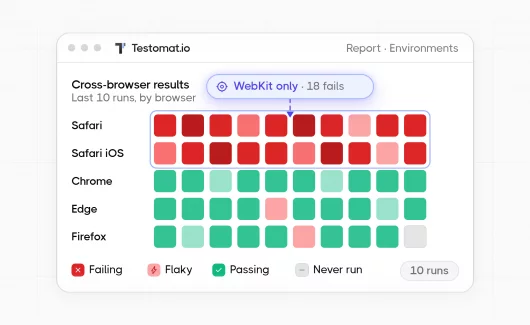
Playwright includes a headless WebKit engine, which lets you run tests against Safari’s rendering engine without owning a Mac. This is useful for teams doing cross-browser testing across Chrome, Firefox, and Safari from a single CI environment.
PhantomJS
Once a leader in headless browsing, PhantomJS suspended development in 2018 and has been replaced by Headless Chrome and Playwright’s headless browsers. It’s no longer a good choice for new projects. If you’re maintaining a legacy test suite that uses PhantomJS, migration to Headless Chrome or Playwright is worth prioritizing.
Headless Browser Testing vs. Regular Browser Testing
Headless mode is faster and more CI-friendly, but it’s not a complete replacement for testing with a real browser in a visible window.
Where headless mode wins:
- Regression testing in CI pipelines
- Running large test suites quickly
- Environments without a display server
- Parallel test execution at scale
- Performance testing and automated regression testing on a schedule
Where you still want a headed browser:
- Debugging failing tests (you can’t see what’s happening in headless mode without screenshots)
- Verifying visual rendering and layout
- Testing browser-specific UI behavior that headless browsers may not reproduce perfectly
The practical approach most teams use: run tests in headless mode in CI for speed, and run the same tests in a headed browser locally when debugging. Headless browsers don’t replace real browser testing for visual QA, but they handle the bulk of functional test automation efficiently.
Read also: Playwright vs Selenium vs Cypress
Setting Up Headless Chrome with Selenium and Python
Here’s a working setup for running Selenium tests in headless mode using Python and Chrome.
Prerequisites:
- Python 3.7+
- Selenium (pip install selenium)
- Chrome (v109 or later recommended for –headless=new)
Modern Selenium versions include Selenium Manager, which handles ChromeDriver installation automatically. You don’t need to download ChromeDriver manually.
The –no-sandbox and –disable-dev-shm-usage flags are standard in CI environments. Without them, Chrome may crash in Docker containers or environments with restricted permissions. The –window-size flag matters because headless Chrome defaults to 800×600, which can cause layout-dependent tests to behave differently from what users see at normal viewport sizes.
Firefox and Edge both support headless mode with similarly minimal configuration.
Using Selenium WebDriver for Headless Tests
Selenium WebDriver is the most widely used browser automation tool for test automation. It supports headless Chrome, headless Firefox, and Edge in headless mode. The API is consistent across browsers, which makes it practical for cross-browser testing without rewriting your tests. A few things worth noting here:
- Use explicit waits (WebDriverWait) rather than time.sleep(). Dynamic web pages load content asynchronously, and fixed sleep timers are both slow and unreliable. Explicit waits poll for conditions and move on as soon as they’re met.
- Save screenshots on failure. Since headless mode gives you no visual feedback, screenshots are your primary debugging tool. Most test frameworks support automatic screenshot capture on test failures.
- Set a consistent window size. Layout bugs that only appear at certain viewport widths can cause false positives or false negatives if your headless browser and your regular browser use different default sizes.
Headless Testing in CI/CD Pipelines
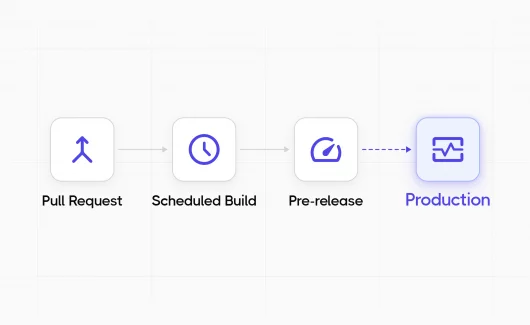
One of the main reasons teams switch to headless browser testing is CI/CD integration. Running browser tests in a pipeline without a display server is what headless mode was designed for.
GitHub Actions runners come with Chrome pre-installed. Selenium Manager handles ChromeDriver version matching automatically, so you don’t need to pin versions or install drivers manually.
For Docker-based CI environments, add –no-sandbox and –disable-dev-shm-usage to your Chrome arguments. Chrome needs these flags to run inside containers due to Linux namespace restrictions.
Cross-Browser Testing in Headless Mode
Supporting headless mode across different browsers lets you verify that your web application behaves consistently for users across Chrome, Firefox, and Safari. Different browser versions render pages differently, handle JavaScript edge cases differently, and have slightly different support for web standards.
A practical cross-browser setup uses parameterized tests to run the same test suite against multiple headless browsers:
import pytest

from selenium import webdriver

from selenium.webdriver import ChromeOptions, FirefoxOptions

@pytest.fixture(params=["chrome", "firefox"])

def driver(request):

if request.param == "chrome":

options = ChromeOptions()

options.add_argument("--headless=new")

options.add_argument("--window-size=1920,1080")

d = webdriver.Chrome(options=options)
else:
options = FirefoxOptions()

options.add_argument("--headless")

d = webdriver.Firefox(options=firefox_options)

yield d

d.quit()

def test_page_title(driver):

driver.get("https://your-app.com")

assert "Your App" in driver.title
This pattern runs every test in your test suite against both Chrome and Firefox, catching browser-specific bugs without duplicating your test code.
Debugging Headless Tests
Debugging is harder in headless mode because you can’t watch what’s happening. These approaches help:
Screenshots on failure. Most testing frameworks support automatic screenshot capture when a test fails. In pytest with Selenium, you can add a fixture that captures a screenshot when a test doesn’t pass:
@pytest.fixture(autouse=True)

def screenshot_on_failure(driver, request):

yield

if request.node.rep_call.failed:

driver.save_screenshot(f"screenshots/{request.node.name}.png")
Remote debugging port. Adding –remote-debugging-port=9222 to your Chrome arguments opens a DevTools debugging port. Connect to localhost:9222 in a headed Chrome instance to inspect what’s happening in your headless browser. Useful when a test passes in headed mode but fails in headless.
Page source logging. When a test fails, logging driver.page_source gives you the HTML at the point of failure, which often reveals whether the expected elements were present at all.
Run in headed mode locally. If you can’t figure out what’s failing from screenshots and logs, remove the –headless=new argument and run the test locally in a visible browser. You’ll usually spot the issue immediately.
Common Pitfalls
- Headless mode doesn’t always match real browser behavior. Some JavaScript features, browser extensions, and rendering details behave differently in headless mode. If a test passes in headless but fails in a real browser (or vice versa), check whether the behavior depends on GPU rendering, specific browser UI elements, or JavaScript APIs that differ between headless and headed modes.
- Default window size causes layout bugs. Always set –window-size explicitly. 800×600 is too small for most modern web applications and will cause viewport-dependent tests to fail.
- Missing –no-sandbox in Docker. Chrome in a Docker container needs –no-sandbox and –disable-dev-shm-usage. Without these, Chrome crashes silently and your tests report connection errors.
- Stale selectors. Dynamic web pages can change the DOM after initial load. XPath and CSS selectors that work in one browser version may break in another. Keep selectors specific but not brittle, and prefer stable attributes like data-testid over fragile position-based selectors.
Managing Headless Test Results
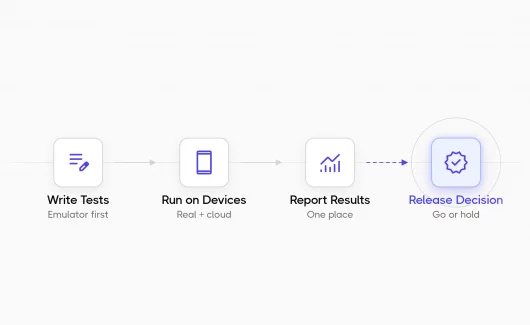
Running tests in headless mode is only useful if you can see what happened. Browser tests running in CI produce results, but without a proper test management layer, those results live in log files that nobody looks at.
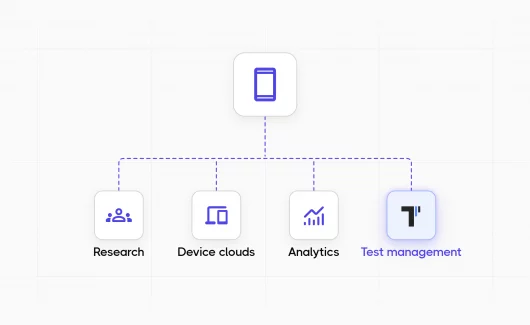
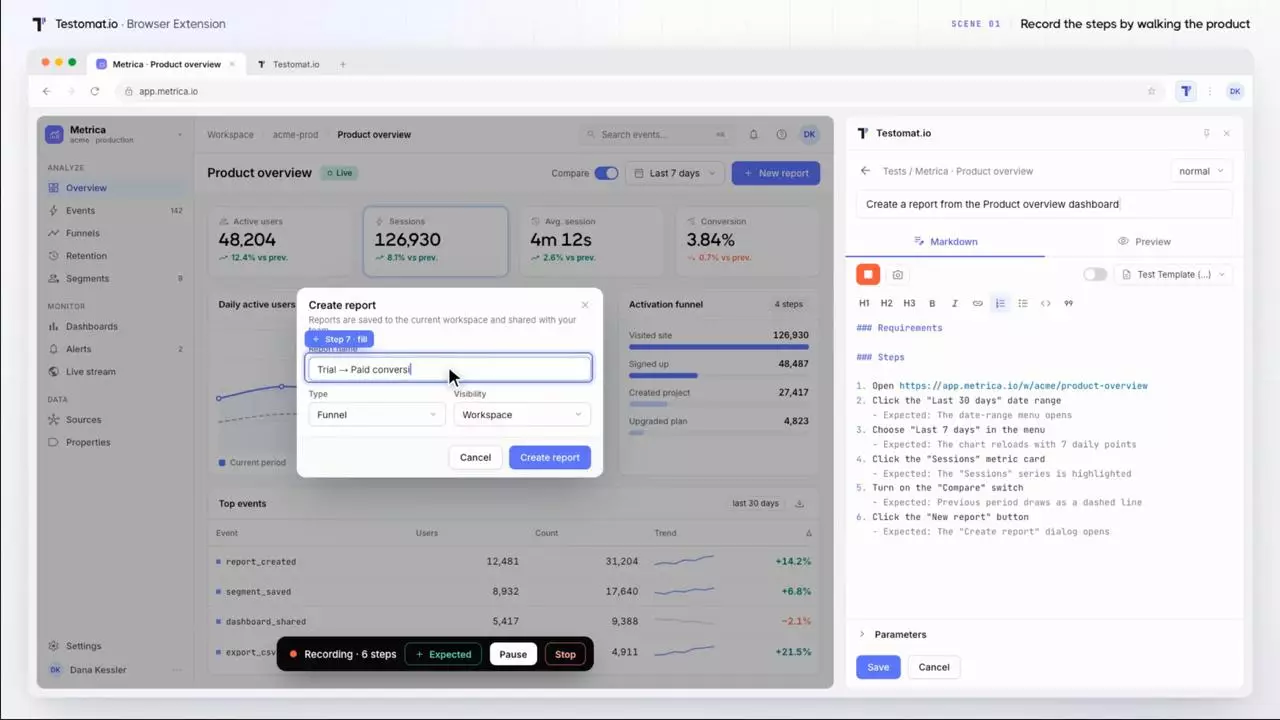
This is where Testomat.io fits in. It works as a reporting and test management layer on top of whatever automation framework you’re already using. Whether your headless tests run through Selenium, Playwright, Cypress, or any other framework, Testomat.io collects results in real time as tests complete.
For teams running large test suites, this matters practically. You get:
- Live reporting as headless tests execute in CI, rather than waiting for the full suite to finish
- Step-level pass/fail details with stack traces for failed tests
- AI-powered failure analysis that groups similar failures and suggests root causes, saving the time you’d otherwise spend manually triaging logs
- Automatic flaky test detection for tests that alternate between passing and failing across runs
- Notifications via Slack, Teams, or Telegram when runs complete or thresholds are exceeded
The integration is a single npm package or Java reporter. Add TESTOMATIO=<api_key> as an environment variable in your CI pipeline and results start flowing. Nothing about your existing headless test setup needs to change.
For QA leads specifically, the AI-powered run summary is useful after headless regression runs: instead of reading through hundreds of test results, you get a summary of what failed, what the likely causes are, and which tests are behaving inconsistently.
Summary
Headless browser testing is the standard approach for running automated browser tests in CI/CD pipelines. The setup is straightforward: pass --headless=new to ChromeOptions, set a window size, add --no-sandbox for Docker environments, and use explicit waits.
The main tradeoffs to keep in mind:
- Headless mode is faster and CI-friendly, but harder to debug without screenshots and logs
- Real browser testing is still necessary for visual QA and rendering verification
- Different browser versions behave differently, so cross-browser testing across Chrome and Firefox catches bugs that single-browser testing misses
For teams running automated regression testing at scale, the gap between running headless tests and understanding the results is where most time gets lost. Good tooling for test reporting and failure analysis closes that gap.
Want to see your headless test results in a proper dashboard? Try Testomat.io free for 30 days , no credit card required.